
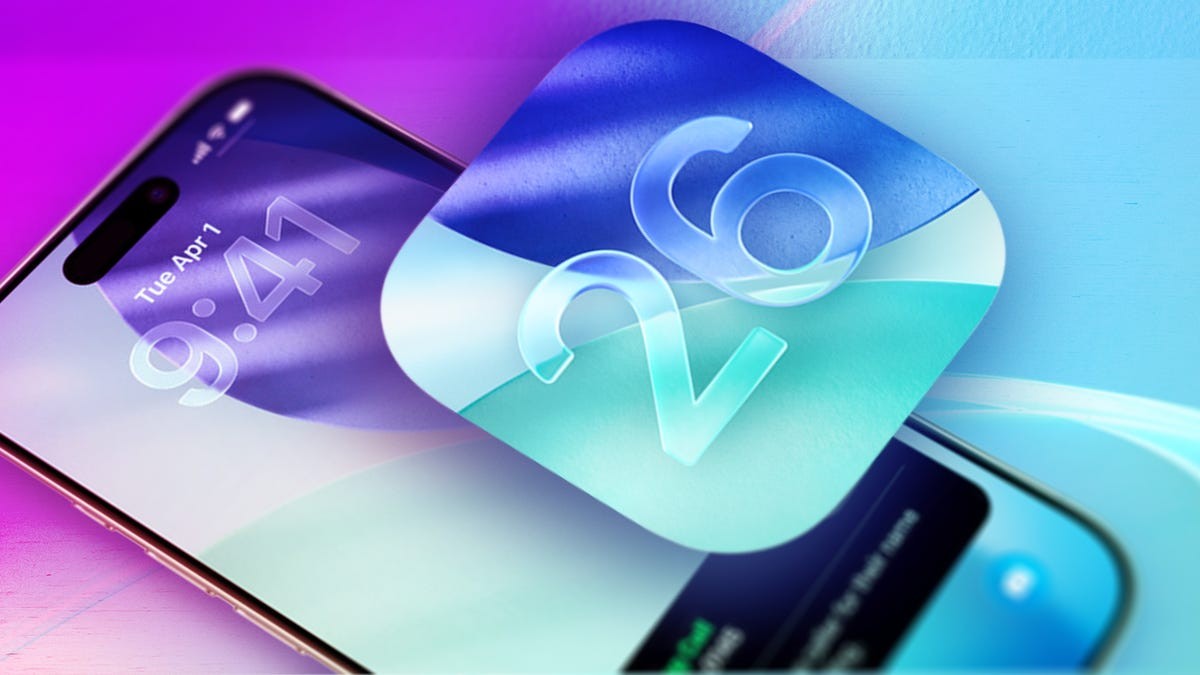
Apple’s release of iOS 26 marked a massive shift in the iPhone’s visual identity. With the introduction of the “Liquid Glass” design language, the company has implemented its most significant aesthetic overhaul since the major redesign of iOS 7 in 2013.
While the new look is sleek, the heavy use of transparency and glass-like textures has proven polarizing for many users. If you find the interface distracting or difficult to read, there are built-in tools to help you regain control over your screen’s appearance.
Why the design is controversial
The “Liquid Glass” aesthetic relies heavily on translucency and layered effects to create depth. During the beta testing phase, Apple attempted to address legibility issues by adding a “frosted” texture to certain elements, but for many, the design still feels too busy or lacks sufficient contrast.
This tension highlights a recurring challenge in modern UI (User Interface) design: balancing aesthetic innovation with functional accessibility. For users with visual impairments or those who simply prefer a cleaner look, the high level of transparency can make text harder to track and icons difficult to distinguish.
How to reduce transparency and increase legibility
If you find the Liquid Glass effect overwhelming, you can significantly simplify your interface by following these steps (available on iOS 26.1 and later):
- Open the Settings app.
- Navigate to Accessibility.
- Select Display & Text Size.
- Toggle on Reduce Transparency.
What this changes: Enabling this setting will darken menus and UI elements, replacing the see-through glass effect with solid, more opaque backgrounds. This applies to critical areas such as the Control Center and the Messages app, making the interface much easier to navigate at a glance.
Enhancing visual distinction
For even more control, you can use the Increase Contrast toggle located in the same Display & Text Size menu.
- Increase Contrast: This feature darkens app icons and sharpens the borders between different UI elements. It is particularly useful if you struggle to tell where one button ends and another begins.
- A Note on “Clear Icons”: If you prefer the “Clear app icon” aesthetic—which prioritizes your wallpaper as the main visual focus—be aware that enabling Reduce Transparency or Increase Contrast will diminish that effect. These accessibility features prioritize function over form, making the icons more prominent and “center stage” rather than subtle.
Pro Tip: If you decide you miss the original Liquid Glass look, you can easily revert your device to its default state by following the same steps and toggling these options off.
Summary
While iOS 26 introduces a bold new visual era for iPhone, Apple provides essential accessibility tools to help users customize the experience. By adjusting transparency and contrast, you can tailor the “Liquid Glass” design to suit your personal preference for either high-style aesthetics or high-function legibility.