When you hit the power button, the screen doesn’t just flicker to life. It starts with a layer of software called the BIOS (Basic Input/Output System). You’ve likely seen it before. Text scrolling across a black background. Specs for your RAM. The type of hard drive attached. It feels like a delay. It’s not. It’s a rigorous diagnostic process. The computer is checking if it can even think before it tries to run.
Most people skip this phase. They want the desktop. They want the browser. But behind the scenes, the BIOS is doing heavy lifting. It loads interrupt handlers. It checks the CMOS Setup settings. Then, it looks at the video card.
Video cards aren’t dumb pipes. They have their own miniature BIOS. This chip initializes the graphics processor and video memory on the card itself. If the card doesn’t have one, the motherboard’s ROM holds a fallback driver. The BIOS loads that instead. The goal is simple: get pixels on the screen.
Cold Boot vs. Reboot Logic
Here is where it gets interesting. The BIOS needs to know if you just turned the machine on or if it’s restarting. It does this by peeking at a specific memory address: 0000:0472.
If the value there is 1234h, it’s a reboot. The BIOS knows the kernel is already mostly in place. It skips the heavy diagnostics. It moves fast.
If the value is anything else? It’s a cold boot. The full routine begins. This is where the POST (Power-On Self-Test) happens. The machine verifies every byte of RAM. It runs read/write tests on each memory address. It checks the PS/2 or USB ports for a keyboard and mouse. It hunts for a Peripheral Component Interconnect (PCI) bus. If it finds one, it scans every PCI card installed.
Errors here are brutal. No GUI. No explanations. Just beeps. A series of short or long tones. Or a stark text message. An error during POST is almost always a hardware failure. Bad stick of RAM. Dead GPU. Loose cable.
What the System Sees
Once the diagnostics pass, the BIOS displays your system specs. You’ll see:
- The processor model and speed
- Floppy drive status (yes, they still check)
- Hard drive details
- Total memory installed
- BIOS revision and date
- Display adapter information
If you have specialized hardware, like a Small Computer System Interface (SCSI) adapter, the BIOS loads its drivers and lists the device. It’s building a map of your machine.
The Bootstrap Sequence
Now comes the magic word. Boot. Short for bootstrap. It’s an old phrase. “Lift yourself up by your bootstraps.” It refers to the process of launching the operating system.
The BIOS looks at the boot sequence defined in the CMOS Setup. It’s a priority list. The BIOS tries to boot from the first device on that list. If it fails? It tries the second. And the third.
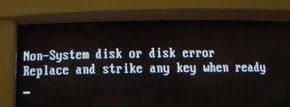
If the BIOS can’t find a bootable device, the startup halts. You’ve probably seen this. You restart your PC. A CD is left in the drive. The BIOS tries to boot from it. It fails. The screen goes dark or shows an error.
The BIOS has tried to boot the computer off of the disk left in the drive. Since it did not find the correct system files, it could not continue.
It’s a frustrating moment. But it’s an easy fix. Pop out the disc. Press a key. The computer resumes its search. It finds the hard drive. It finds the operating system. The screen changes. The logo appears.
You’re finally in. But the BIOS did the work. It checked the memory. It tested the ports. It verified the video card. It scanned the buses. It followed the boot order. Without that sequence, you’re staring at a black screen.