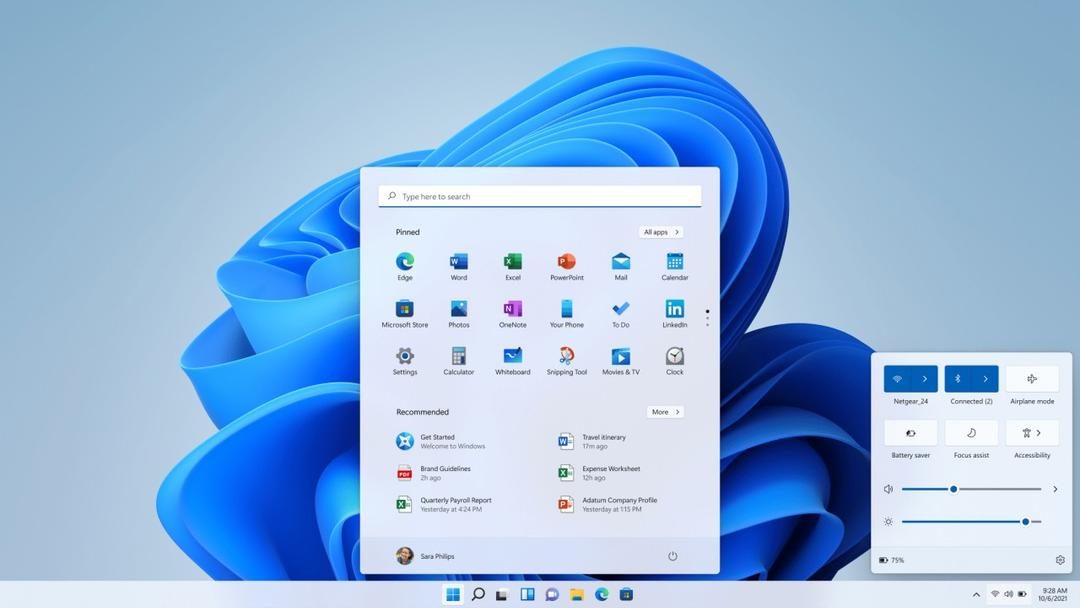
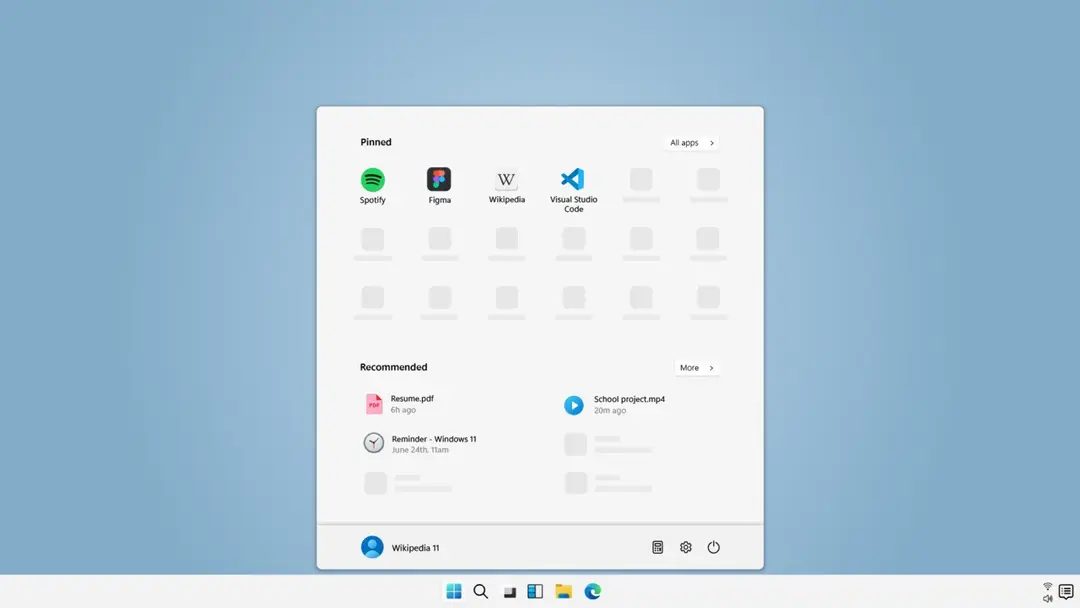
Windows 11 Home is Microsoft’s solution for a cleaner and faster personal computing experience. This is more than just coat of paint over Windows 10. The design language is lighter. The animation is now smoother. The Start button has finally been moved to the center of the taskbar. This does not apply to servers. This is for people who want their desk to feel more like a living room than a spreadsheet.
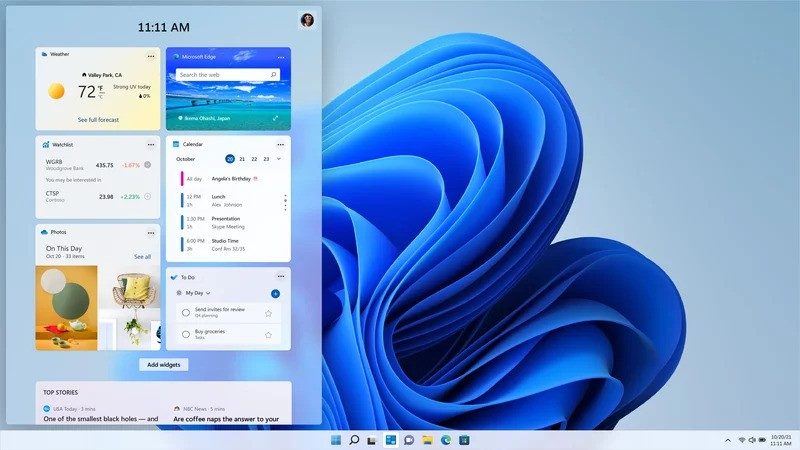
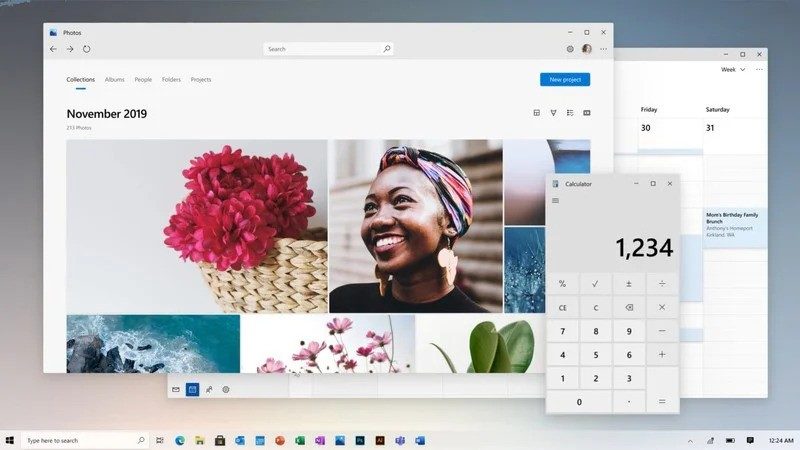
Snap Layouts is a game changer for window management. Instead of manually resizing the box, Windows suggests a grid when you hover over the maximize button. This works well. This is intuitive. You need to stop fighting your desktop clutter.
Why Windows 11 Home is important for everyday users
The real change here is integration. Teams and OneDrive are built into the core. If you work from home, your files are already synced. Communication tools are just a click away. This reduces friction. Spend less time searching for apps and more time working.
Safety is no longer an afterthought. The core has been rewritten. Better handles modern hardware architectures, especially 64-bit systems and ARM processors. This means your new laptop or tablet will perform better. This also means that security defaults are stricter. For casual users who do not touch registry keys, this is an invisible protection. This is good.
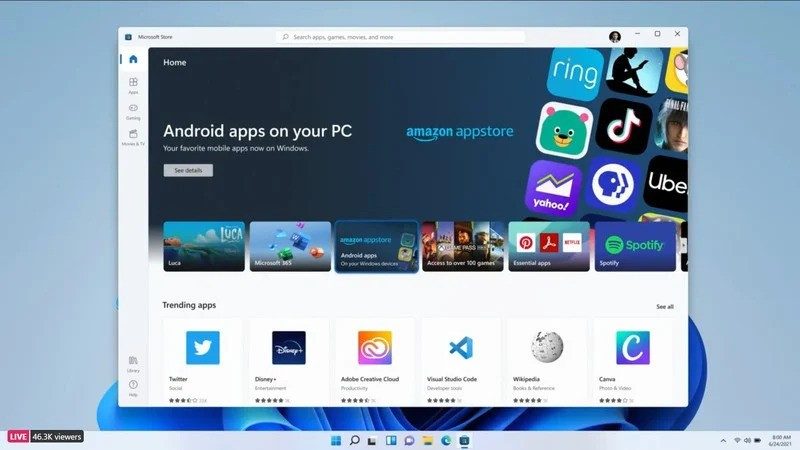
There is also support for Android applications. It’s growing. You can use mobile apps on your desktop. It’s not perfect. Emulators have some quirks. But it does expand what you can do on your Windows PC without opening a browser.
Download Windows 11 Home Edition safely
Installers are available directly from Microsoft. Or use a trusted partner. Don’t download from random blogs. The risk of malware is too high. The cost of a stolen identity or bank account stolen far exceeds the cost of your license.
Microsoft offers a free trial. You don’t have to pay to test the operating system. The Features are locked. Personalization is limited. However, you can tell if your workflow breaks. If so, stop. If it works, buy the key.
Special offers are available for students or educational institutions. Check your school’s IT portal. You can have a bulk licensing. However, the general public is charged a fee. Activation is required to use all features.
Minimum requirements: Can your computer run it?
Check your hardware before downloading anything. Microsoft is very strict about this. There are no shortcuts.
What you really need is:
– 1 GHz processor with at least 2 cores.
– 4GB of RAM.
– 64 GB storage space.
– UEFI firmware.
– Safe boot function.
– TPM 2.0.
TPM 2.0 is the most important. Older computers often do not have this chip. If the machine is from 2018 or earlier, it may not pass the check. This is not meant to discourage sales. It’s about security. The TPM stores the encryption keys. Without this, the system becomes more vulnerable to cold boot attacks.
Installation path: Upgrade vs. Clean Install
There are two main options.
Upgrade from Windows 10. If your current computer meets the requirements, you can go directly to Windows 11 Home. Your files stay. Your application will be saved. It is very convenient. But it carries over the bloat. If your old system was slow, your new system will probably be slow too.
Clean installation. Here’s how you can improve performance. Requires a bootable USB drive. Use Microsoft’s Media Creation Tool. Format the drive. Install from scratch. All data will be lost. Create a backup first. But the result is a lean system. There are no ghost processes. There are no registry keys left. Just like Windows 11 Home.
ARM vs. x64: Choosing the right architecture
Windows 11 Home supports both. This is important.
x64 is standard. Intel and AMD chips. High performance. Compatible with almost all desktop software. If you play games or use heavy engineering software, use x64.
ARM is different. Devices like the Surface Pro X use these chips. Offers incredible battery life. They start almost immediately. However, They emulate x64 apps. It works well for most things. Not suitable for everyone. Some games and custom drivers crash. Check compatibility before buying an ARM laptop.
What about Mac and Linux?
Can I install Windows 11 Home on a Mac? Yes, if you have an Intel-based Mac. Boot Camp allows native installation. It is very stable.
Apple Silicon Macs (M1, M2, M3) are different. Virtualization tools exist. Parallels, VMware. I am using Windows 11 but It’s not native. It’s emulated. Full hardware acceleration is not available. Gaming suffers. Professional video editing might stutter. It can also be used in office work. Don’t expect miracles.
Linux? Native installation is off the table. Modern Secure Boot computers cannot easily dual boot. Virtualization is your only real option. or WSL2 (Windows Subsystem for Linux). Run Linux “inside Windows”. Not the other way around.
Conclusion
Windows 11 Home is a mature operating system. This is not revolutionary. It’s iterative. It fixes the rough edges in Windows 10. It also looks better. Works on more hardware. Integration with mobile phones and cloud services is even better.
Is it worth upgrading? If your current computer feels slow, cluttered, or just plain old, yes. The snap layout alone is worth the effort of a clean install. If you have a pristine Windows 10 machine, wait.
The ecosystem is expanding. Even more applications. More hardware options. The lines between mobile devices and desktop computers are blurring. Windows 11 Home is somewhere in between.
It’s not perfect. Some settings are too hidden. The new context menu takes some getting used to. But it is practical. It’s safe. For most, this is enough.
Vous ne payez pas pour la version Pro si vous ne l’utilisez pas. C’est la première chose à comprendre. Windows 11 Famille n’est pas une version « réduite » ou « cassée ». C’est une version complète pour le grand public. La différence principale réside dans les outils d’entreprise. Les fonctionnalités avancées comme la gestion de domaine, les stratégies de groupe, Hyper-V ou BitLocker sont réservées à l’édition Professionnelle et Entreprise.
Pour la majorité des utilisateurs, la version Famille suffit. Elle couvre la bureautique, le multimédia et la navigation sécurisée. Vous avez accès aux innovations récentes en matière de gestion de bureau. Les outils connectés et la personnalisation sont là aussi. Si vous ne gérez pas un parc informatique d’entreprise, vous n’avez probablement pas besoin des extras de la version Pro.
Prix et sécurité : les idées reçues
Le prix est le premier critère qui distingue ces deux éditions. La licence Windows 11 Famille coûte environ 145 euros. Il y a des variations selon les canaux de distribution. Des offres promotionnelles existent. C’est plus abordable que la version Pro.
Beaucoup pensent que cette version est moins sécurisée. C’est faux. La sécurité est équivalente. Vous avez Windows Hello. Le contrôle parental est intégré. Le filtrage web via Microsoft Edge fonctionne correctement. Les mises à jour automatiques restent gratuites pendant toute la durée de vie du produit.
La licence Famille s’active sur un seul poste. C’est une limitation claire. Mais elle ne vous prive pas des protections de base. Si vous cherchez une sécurité solide sans le surcoût de l’entreprise, la version Famille est le choix logique.
Mises à jour et installation
Comment passer à Windows 11 ? Microsoft propose un support régulier. Vous pouvez revenir à une version antérieure si les choses tournent mal. Il y a des conditions. Il faut conserver une sauvegarde de vos données avant toute mise à niveau. C’est une règle d’or.
Si vous voulez installer Windows 11 Famille depuis une version plus ancienne, l’assistant de mise à jour officiel est la voie à suivre. Il garantit la sécurité du processus. Il préserve l’intégrité du système. Évitez les méthodes non officielles. Les risques sont trop grands.
Gardez toujours une sauvegarde à jour avant de modifier votre système d’exploitation.
Accompagnement et formation
Apprendre un nouveau système prend du temps. Microsoft et ses partenaires proposent des ressources. Il y a des tutoriels. Des webinaires existent. Des cursus de découverte sont disponibles. Ils visent à aider les utilisateurs.
Ces ressources couvrent plusieurs sujets. La personnalisation du menu Démarrer. La gestion des bureaux virtuels. L’utilisation sécurisée du navigateur. La maîtrise des outils collaboratifs. Les formats varient. Guides vidéo. Articles experts. Classes virtuelles interactives.
S’adressent-ils aux débutants ? Oui. Et aux utilisateurs aguerris ? Oui aussi. Les utilisateurs expérimentés peuvent y trouver des astuces pour perfectionner leur usage. Ce n’est pas réservé aux novices complets.
Certification et support technique
Vous pouvez valider vos compétences. Microsoft propose des examens. Les certifications MOS (Microsoft Office Specialist) intègrent l’environnement Windows. Elles couvrent l’ensemble des outils bureautiques.
Cela peut valoriser un parcours professionnel. C’est utile pour les métiers du support technique. Ou de l’administration informatique. La certification ajoute une crédibilité. Elle aide à l’employabilité.
Le support Microsoft pour Windows 11 Famille est principalement en ligne. Une FAQ exhaustive est disponible. Un forum communautaire existe. L’assistance par chat est possible. La réponse aux problèmes passe par ces canaux.
Le système évolue constamment. Les mises à jour régulières corrigent les failles. Elles introduisent aussi des améliorations. Ergonomiques. Sécuritaires. Windows 11 Famille reste un pilier de l’écosystème Microsoft. Il s’adapte aux usages domestiques. Il anticipe les besoins émergents.
Sécurité. Connectivité. Multimédia. Les besoins changent. Le système suit. Télécharger via une source fiable est important. Futura est citée comme exemple. L’objectif est d’obtenir un système moderne. Sécurisé. Adapté aux usages courants.
La frontière entre usage personnel et professionnel s’efface parfois. Les fonctionnalités familiales deviennent complexes. Les outils de productivité se généralisent. La version Famille comble le fossé. Elle offre plus que jamais. Mais elle reste limitée sur certains aspects techniques.
Le choix dépend de vos besoins réels. Et non de ce que vous croyez nécessaire.
Strict requirements for Windows 11 Home Edition
You can’t just get Windows 11 and hope for the best. The specifications are strict. They are not suggestions. They are gates. If the hardware does not remove these, the installation will fail. Even worse, it can end up broken even after installation.
The target here is Windows 11 Family. Microsoft calls it “home” in some markets, but the technical identity is the same. It is an operating system designed for home use. It’s not a business. It is not an education. Just you and your apps.
Architecture and CPU Reality
With Windows 11, the time of 32-bit computing is over. This system only works on x64 and Arm64 architectures. If your processor is older or limited to 32-bit, you will be locked out.
The minimum processor specification is a 64-bit processor with at least two cores at 1 GHz. That is the absolute floor. It does not mean your PC will run well. That’s all you need to get started.
“Hardware requirements are very strict to ensure safety and performance standards.”
Memory and storage: new minimum requirements
Requires 4 GB of RAM. Not 2. Not 1. It’s 4.
Storage is just as ruthless. Requires at least 64 GB free space. This does not apply to lightweight Linux distributions. This works on full Windows installations including updates, drivers and your own data. If your drive is half-full, you need to free up space or upgrade.
Firmware, TPM and Secure Boot
most users get stuck. Microsoft implements two non-negotiable security features.
- **UEFI with secure boot. ** The motherboard must use the Unified Extensible Firmware Interface. Traditional BIOS is obsolete. Secure boot must also be enabled.
- TPM 2.0. Trusted Platform Module, version 2.0. Especially version 2.0. Version 1.2 is not enough. The chip stores the encryption key and ensures that the boot process hasn’t been tampered with.
These are not options. They are baked into the installation media. If the installer doesn’t detect them, it stops.
Display and Connectivity
The screen resolution must be at least HD. It’s 720p. Also, the diagonal size must be at least 9 inches. No small laptop screen. No small monitors.
Internet connection is recommended. Not strictly required for installation, but is required for activation and updates. You also need it to use the Microsoft Store.
Installation method and source
How do you get the OS?
–ISO image. ** Download directly. Flash it to a USB drive. Boot from it.
– Installation assistant. ** A small executable that runs on Windows 10 or 11. Download and install the new operating system.
– ** Media creation tool. ** Microsoft’s utility. It prepares a bootable USB drive for you.
The source is important. Use the Microsoft website. Use trusted partners. Don’t download ISOs from random forums. Malware is common in pirated copies.
License and Activation
This is commercial software. License required.
Activate using a digital license or a 25-character product key linked to your Microsoft account. Without this, Windows
Convenience costs in decentralized markets
I don’t buy subscriptions. You lease access to a feature set can be changed without notice.
Modern SaaS models are built on this premise. Companies like Adobe, Microsoft, and Autodesk moved from perpetual licenses to recurring revenue streams several years ago. It was a strategic pivot. Predictable cash flow beats a one-time deal. But for the user? This is an ongoing negotiation.
Prices are going up. Features move. Integrations break.
Consider Adobe Creative Cloud. A decade ago, you bought Photoshop once. You owned it. You can update your Q3 number when you need it, not when your business needs it. Now you pay monthly. If you stop paying, the software will disappear. This is not a bug. It is a feature for the vendor. This is a vulnerability for users.
Where is the data actually located?
Many users believe that because they pay for cloud storage, their data is safe. it is not. stored. Safety implies recovery, security, and accessibility. Storage just implies existence.
Look at the terms of service for major platforms. They reserve the right to scan, analyze or delete content based on a broad interpretation of “violations” or “technical requirements”.
- Ownership vs. License: You rarely own your content in enterprise SaaS. You have been granted limited access while your subscription is active.
- Portability: Exporting data is often difficult. Formats are proprietary. Tools are clunky.
- Retention policies: If your account is flagged, access can be suspended instantly. No appeal. No warning.
This creates a locking effect. Moving from one provider to another is not just a technical hurdle. It’s a financial and operational nightmare.
Hidden taxes related to integration
Enterprise software does not exist in a vacuum. It must talk to other software. APIs are the bridges. However, the bridge requires a toll.
Integrating CRM and ERP or marketing automation and sales enablement creates delays. You introduce points of failure.
- API Limits: Every provider sets limits on calls per minute or hour. Exceed it and the system throttles. Work stops.
- Data sync delays: Real-time is rarely real-time. It is “near real-time”. Salesforce sales can take up to 15 minutes to arrive in your warehouse system. That 15 minutes can mean overselling stock.
- Version Mismatches: If provider A updates its API and provider B has not patched their connector, the integration will break. Who will fix it? The user. Not a reporter.
This fragmentation forces IT teams to become developers. They build middleware. They write the script. They monitor the logs. All of this is done to keep critical business operations running.
Safety is a model of shared responsibility
Cloud service providers protect your infrastructure. These protect the hypervisor. Protect your data center.
You protect your information. Access is secure. You are responsible for securing your configuration.
Configuration errors are the most common cause of cloud service breaches. Your S3 bucket remains open. Administrator credentials are stored as plain text in the configuration file. Multi-factor authentication is disabled.
The service provider does not solve this problem. It’s not their fault. This is yours. However, marketing materials often blur this line. They promise “enterprise-grade security” but fail to explain that this level is limited to their own firewalls.