
Microsoft built an empire on MS-DOS. It was text-heavy and unforgiving. You typed commands. You navigated directories by rote. It worked, but it alienated anyone who wasn’t already tech-savvy. The barrier to entry was high.
Then came the shift. In 1983, Microsoft announced a graphical user interface. They called it a GUI. Suddenly, you could click icons instead of typing strings of code. It was a massive pivot. The goal was simplicity. Make it so easy a child could use it.
For decades, that strategy paid off. Windows dominated corporate PCs. Some versions like XP lasted for years. Others, like Vista, were widely panned and struggled to recover their reputation.
Now, Windows 8 represents a dramatic break from that history. It isn’t just an update. It’s a reaction to a changing market. The rise of smartphones and tablets forced Microsoft’s hand. They needed an OS that could bridge the gap between a traditional PC and a touch-enabled device.
A PC OS for a Post PC World
Windows 8 offers two distinct experiences. There is the traditional desktop. It looks familiar. You have icons. You click to launch apps. It behaves like the Windows versions you likely already know.
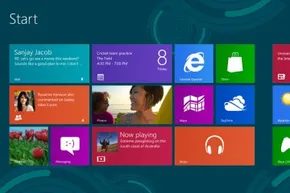
Then there is the tiled interface. Formerly known as Metro. This is the big change. It looks more like a tablet home screen than a computer desktop.
Why the shift? PC sales were slipping. People were buying iPads and Android devices instead. Microsoft couldn’t stop the trend directly, so they adapted. They built an OS that works across platforms. If you have a touch screen, you use gestures. Tap a tile to open an app. Swipe to move between them. Pull up the Charms menu from the screen’s edge for search and settings.
If you don’t have touch capability, you’re not left behind. You can still use the tiled interface with a mouse and keyboard. You just have to hover in specific activation zones to trigger menus. A scroll bar at the bottom lets you pan through the tiles.
These aren’t static icons. Microsoft introduced “live tiles.” Apps push information to the screen even when closed. Weather updates. Email previews. News headlines. The interface stays current without you needing to open the app.
Windows RT: A Different Beast
Not all Windows 8 is created equal. There is Windows RT. It targets devices with ARM-based processors. Standard Windows 8 requires Intel chips.
RT looks like the tiled interface. It behaves similarly. But there are restrictions. It supports only a limited set of desktop applications. Everything else must be a “store app.” This isolation is a key differentiator in how Microsoft segmented its new operating system.
Apps Versus Software
The distinction between “apps” and “software” becomes critical here. In the Windows 8 model, apps are designed for the tiled interface. They are sandboxed. They don’t have the same deep system access as traditional desktop programs. This separation aims to improve security and performance on touch devices. But it also limits what users can do. You can’t just install any old executable and expect it to run seamlessly if the version of Windows doesn’t support it. This creates a fragmented experience. A power user might find themselves restricted by design choices meant for casual tablet users. The line between a desktop utility and a touch-first app is blurred, and often frustrating.
Technically, a Windows 8 app is just software. But in practice, the terms describe two very different experiences. Microsoft drew a hard line between them. If you are navigating Windows 8, understanding that distinction is the difference between efficiency and frustration.
An app is lightweight. It installs quickly. It runs without bogging down your system. Developers build these for speed and simplicity. They strip away bloat. The goal is a narrow focus. You open the app. You do one thing. You close it. The file size stays small because the feature set is limited. This isn’t a bug. It’s a design choice. It prevents the interface from becoming a labyrinth.
But there is a catch. Windows 8 tries to be everything to everyone. It works on touchscreens. It works on traditional PCs with mice and keyboards. Developers have to code for both.
For touch users, apps rely on gestures. Swipe. Tap. Pinch. It’s intuitive. For mouse users, that same interface can feel clunky. You need precision. You need menus. You need keystrokes. Windows 8 attempts to bridge this gap, but the tension between touch-first design and desktop utility remains a core friction point.
The Desktop: Where Heavy Lifting Happens
When we say “software” in the modern Windows 8 context, we usually mean the heavyweights. These are complex programs. They have deep menu systems. They require keyboard shortcuts that apps simply don’t support. They don’t fit in the tiled interface. They live on the desktop.
The desktop environment supports full-featured programs. Think Photoshop. Think Excel with macros. Think legacy enterprise tools. These programs have app counterparts, sure. The app version might exist. But it will be stripped down. It will lack the depth you need. If you need power, you go to the desktop.
The desktop looks familiar. It reminds you of Windows 7. But it’s not. There are significant structural changes. The biggest? The Start button is gone.
Microsoft killed the Start button in Windows 95. It had been a staple for decades. Its disappearance feels jarring to some. It’s not just an aesthetic change. It’s a philosophical shift. You don’t click a button to start. You go to the Start screen. The tiled interface.
Navigating the New Normal
How do you access functions if there’s no Start button? You use the Windows key. If your keyboard has it, press it. It switches you between the desktop and the tiled interface instantly.
If you are using a mouse, hover your cursor in the lower-left corner. You’ll see the Start screen icon. Click it. You’re in.
This isn’t just about convenience. It’s about relevance. The desktop serves a critical purpose: supporting legacy software. Not every program has been rebuilt for the modern era. Some tools are too old. Too complex. Too niche. They cannot run as Metro apps. They cannot fit in the tiled sandbox.
The desktop ensures these programs still work. It keeps Windows 8 viable for businesses and power users who depend on older tools. Without that environment, Windows 8 would be a tablet OS with a PC skin. With it, it remains a full operating system.
Snapping Tiles
One of the more useful features of the tiled interface is the ability to snap apps side-by-side. You can run two apps simultaneously. This is particularly useful for multitasking. You can have a browser open next to a document. Or a chat app next to a calendar. This capability extends the utility of the tiled interface beyond simple single-tasking.
Mobile apps and traditional computer software operate on fundamentally different premises. On a desktop, you are used to the window-based model. You can have Word open, a browser with ten tabs, and a music player running simultaneously. Each program lives in its own resizable box. The operating system juggles these processes by allocating CPU cycles and RAM to each one.
It works until you don’t have enough resources.
If you push a heavy machine too hard with processor-intensive tasks, everything slows down. It crawls. Modern PCs usually have the horsepower to handle a reasonable multitasking load. Laptops and desktops are built for it. Mobile devices are not.
Phones and tablets lack the raw memory and processing power to dedicate to multiple active processes. The interface reflects this limitation. Most mobile operating systems force a single-app view. You might be able to switch between apps quickly, but you cannot see more than one at a time. The screen is yours. All of it.
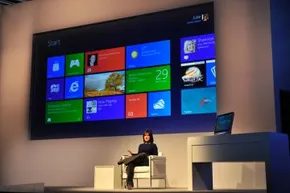
Windows 8 tried to bridge this gap with its tiled interface, which mimics the single-focus nature of mobile. But it introduced a feature called Snap to mimic the desktop experience. Snap allows you to pin a background app to the left or right side of the screen. The foreground app takes up the majority of the real estate.
You can also snap the desktop itself to the side. This reveals all currently running applications, similar to the application tabs in older Windows versions. But there is a catch.
The snapped version of an app is often crippled. Features might be stripped away. You might only see notifications. You can view both apps, but you will not have access to their full functionality. It is a compromise. A way to peek at two worlds without fully entering either.
Living With Your OS In the Clouds
Moving from one device to another requires more than just a responsive UI. It requires a unified experience. You need your apps and data to follow you. A few years ago, this meant carrying a USB drive or an external hard disk. You physically transported your digital life.
Windows 8 marked a shift toward the cloud. The term is vague, but here it simply means networked computers storing data and applications. When you save to the cloud, you can access that information from any gadget with an internet connection.
To use this in Windows 8, you must create a profile linked to Microsoft’s cloud network. Signing in on any Windows 8 device gives you access to your apps and data as if it were your primary machine.
Here is the nuance: Windows 8 apps run directly on the user’s device. They are not hosted remotely like a web service. When you sign into a Windows 8 machine, you do not instantly run your apps. You must download them first. The cloud provides the license and the settings, not the execution engine.
For users who care about customization, this synchronization is valuable. If you set your desktop theme, language, and preferred browser on one device, those preferences sync to the next. Even browser history travels with you. You can log into a different computer and still see the videos you watched on another machine.
This isn’t unique to Microsoft. Google’s Chrome OS relies even more heavily on cloud connections. The trade-off is visibility. You need an active internet connection to take advantage of it.
Tools and Tips for Apps
Steve Ballmer’s infamous floor-jumping video isn’t just corporate hype. It’s evidence. Microsoft actually cares about developers. They built a whole ecosystem for anyone wanting to make apps for Windows 8.
There are three main ways to build these apps. Pick your weapon.
The Web Stack Approach
First, you can use HTML5, CSS, and JavaScript. These are the same tools you use for a dynamic website. It’s the logical choice if you want to port an existing web experience directly into an app container. No heavy lifting required.
The Traditional Code Path
Second, you can go old school. Use C++, C#, or Visual Basic. These languages let you build Silverlight, .NET, and Windows Presentation Foundation apps. It’s more traditional. It feels more like “real” programming if that’s your thing.
The Graphics Heavy Route
Third, there’s DirectX. This is for multimedia applications. You’re building the front end with DirectX interfaces. Behind the scenes, you’ll use C++ and HLSL. If you care about performance and visual fidelity, this is your lane.
Getting Set Up
To submit anything to the Windows Store, you need two things. First, download Windows 8. Second, get the free developer tools. That means Microsoft Visual Studio and the Windows 8 SDK. You also need a developer license. It costs nothing.
Microsoft didn’t leave you to guess the UI. They ran focus groups on touch-screen interfaces and tablets. They looked for patterns. Where do people expect controls to be? How do they swipe? They packaged that research and gave it to developers. Use it. The built-in guidelines in Windows 8 include a grid layout. It helps you arrange graphics and text so the app looks good and works well.
The Submission Gauntlet
Build the app. Test it. Then submit it to the Windows Store.
Microsoft doesn’t just let anything in. They run their own tests. They check for functionality. They check for policy violations. If your app passes, it goes live. If it breaks their rules, it gets rejected. Simple enough.
The Money Talk
Monetization is where things get interesting. You have three choices.
- Charge a flat fee for the app.
- Offer in-app purchases.
- Use advertising to generate revenue.
There is a catch. The Microsoft Services Agreement states that Microsoft takes a cut. Specifically, 30 percent of your revenue.
That number isn’t fixed forever. If your app generates at least $25,000 in revenue, the fee drops to 20 percent. It’s a tiered system. You start with a steep cut. If you succeed, the penalty lightens.
It’s not a guarantee of wealth. But it’s a structure. And for a company that once dismissed the web, it’s a surprising amount of respect for the builders.
The Real Reason Windows 8 Is Version 6.2
Look closely at the version history and the math doesn’t add up. Windows XP is 5.1. Vista is 6.0. Windows 7 is 6.1. So why is Windows 8 version 6.2 when it should logically be 7.0?
It’s not a typo. It’s a trapdoor for legacy code.
Some older applications have hard-coded limits checking the OS version. If an app sees a major version number like 7, it might refuse to run entirely, assuming the environment is incompatible. By keeping Windows 8 in the 6.x series, Microsoft allowed those fragile programs to keep functioning. It’s a shield against application errors disguised as a version number quirk.
Why do developers set these limits in the first place? Sometimes it’s cynical—forcing users into a subscription model for the next upgrade cycle. But often, it’s just lazy engineering. Checking the version number is a shortcut to ensure specific operating system features exist. You don’t need to check if the feature is there; you just check if the OS version is high enough.
Microsoft explicitly advises against this practice. They want developers to test for specific capabilities rather than relying on a version integer. But the version number remains the easiest diagnostic tool for both users and legacy software.
Hardware Requirements for Windows 8
You can’t just plug this into any laptop. Windows 8 was built for Intel processors using either 32-bit or 64-bit architecture. If your chip uses a different instruction set, it won’t run. Period.
To actually get the OS booting, you need to hit these minimums:
- 1 gigahertz processor or faster
- 1 GB RAM (32-bit) or 2 GB RAM (64-bit)
- 16 GB hard drive space (32-bit) or 20 GB (64-bit)
- A graphics card with a WDDM driver compatible with DirectX 9
That last point matters. The Windows Display Driver Model is non-negotiable for the visual interface. If your GPU can’t talk DirectX 9, the Metro UI won’t render correctly.
But specs are just the entry fee. To actually use the thing as intended, you need a touch interface. Without touch, Windows 8 is a jarring, half-baked experience. It was designed for a shift toward smaller, mobile form factors. It’s a glimpse of a post-keyboard computing era.
Will Future OSes Follow This Path?
Microsoft’s pivot was loud. The tiles. The full-screen apps. The removal of the Start button. It was a massive gamble on mobile-first design. Did it work?
The verdict is mixed. The OS struggled to find its footing. Users hated the learning curve. The transition from desktop to metro felt disjointed. It never reached the cultural saturation of Windows 7 or the eventual stability of Windows 10.
Frequently Answered Questions
Can I still use Windows 8 in 2022?
Technically, yes. But support ended on January 10, 2023. After that date, Microsoft stopped sending security patches. Using it online is a risk.
Did Windows 8 fail?
It failed to capture the mass market. The backlash against the interface was real. Microsoft listened, though. They smoothed out the edges in Windows 8.1 and completely reverted the worst changes in Windows 10.