Most people know that the primary purpose of Yahoo Mail is to send and receive messages. But the platform offers more than just a text box. It handles formatting, attachment management, and file storage. If you are new to the service, these features are straightforward to learn. Once you understand how to compose a basic email, you are ready to manage your inbox effectively.
Sending your first email with proper formatting
To create a new message, click the “New” button in the upper left corner of your home page. Select “E-mail Message” from the options. A blank screen will open where you compose your communication.
- To: Type the recipient’s email address. For multiple recipients, separate each address with a comma and a space.
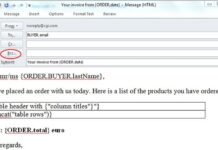
- CC: Use this field to add people who should receive a copy. To hide recipient identities, click “Show BCC” at the end of the “To” line. This sends the message to those individuals without revealing their addresses to others.
- Subject: Write a few descriptive words here. If you are emailing someone you do not know well, be specific. Use details like “Agenda for HR meeting 2-21” or “Thursday’s U-12 soccer game”. Specificity helps prevent your message from being flagged as spam.
- Compose window: Type your message in the large text area. Use the formatting bar below the subject line to change typeface, size, or color. You can also add links or emoticons.
Before sending, click “Spelling” on the bar above the “To:” field to check for typos. When you are ready, hit “Send”. You will receive a confirmation that the message was transmitted. It will automatically be saved in your Sent folder.
You have other options before hitting send:
– Click “Save Draft” to store an unfinished message in your Draft folder.
– Click “Attach” to add files to your email.
Checking inbox and managing incoming mail
Yahoo Mail automatically checks for new mail every 10 minutes. You will see a number in parentheses next to your inbox icon when new messages arrive. If you prefer a sound alert, you can set this up in Yahoo Messenger. Note that Yahoo Messenger is free but requires downloading software and registering an account.
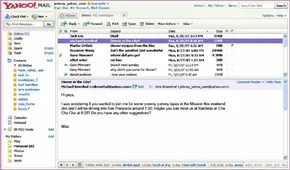
Open your inbox to view your messages. They are listed on the right side, with the most recent at the top. Unread messages appear in bold type. Use the control bar above the list to take action on each email:
- Click the message subject or sender to read it in the pane below the list.
- Click “Reply” to respond to just the sender or everyone.
- Click “Forward” to send a copy of the message and its attachments to someone else.
- Click “Spam” to move unwanted messages to your spam folder.
- Click “Move” to save the message to a custom folder.
- Click “Print” to create a physical copy.
- Click “Delete” to move the message to your Trash folder. You can recover deleted messages from Trash until you empty the folder.
Once you are comfortable with these basics, you can explore advanced features like handling large attachments, searching through stored messages, and accessing your email remotely.